
Products, POS and sales
Use one catalogue across every point of sale.
Keep products and producers in a reusable catalogue. For each event, decide what is sold at each booth, set the price and currency, track stock where needed and bring the sales back into one report.


Draft Beer (500ml) · reusable catalogue record
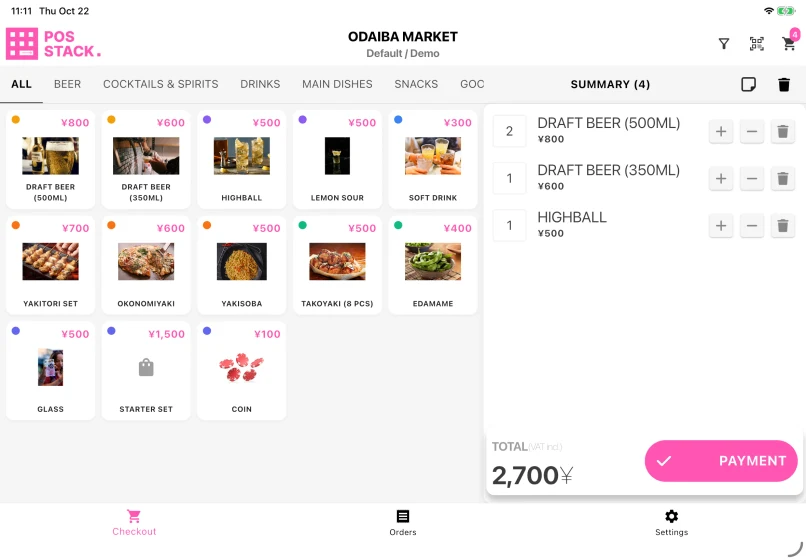
Same product · ¥800 each · Odaiba Market demo
A catalogue that remains after the event
Products, categories and producers stay available to the organising team with their descriptions, photographs and custom fields. A new event selects from that catalogue and adds the event-specific sales information.
A price for each point of sale
The same product can be offered at several points of sale with a different price at each one. The POS screen shows the correct product and price for the booth where the device is working.
One product · two booth prices
Draft Beer (500ml)

Shared stock across the event
Turn on stock tracking only where it is useful. Set the initial quantity for a product, then record restocks, write-offs and physical counts in the same ledger. Sales from every point of sale draw from that product’s shared event stock.
One product · shared event stock
Draft Beer (500ml)
Default + Staff Lounge · one shared stock pool

JPY or any custom currency
Use Japanese yen or create any custom currency. Set its code, name, symbol and yen conversion rate, then assign it to the relevant booths. Coins and tokens are just examples. Visitors see prices in the booth’s currency, while revenue reporting stays in yen.
JPY · Japanese yen
Prices displayed in ¥.
Custom currency
Choose a name, symbol and yen rate—for example, coins or tokens.
Choose the currency for each booth

Set your currency’s yen conversion

Sell in the booth’s currency. Report revenue in yen.
What comes back into Event Base
- Sales by product and point of sale
- A searchable transaction history
- Opening cash, cash drops and counts by device
- Printed or QR-code receipts
- Shared event stock ledgers by product
- Exports with one column per language
Explore the platform
Questions organisers ask
- Do we rebuild the catalogue every year?
- No. Products remain available to the organising team. Each event selects the products it needs and sets the event-specific prices and points of sale.
- Can exhibitors add their own products?
- Yes. They can submit products through Participant Portal. The organiser reviews them before they are used at the event.
- Can the same product have a different price at each booth?
- Yes. Each point of sale can have its own price for the same product. Stock is shared across the event’s points of sale.
- Can we use euros or an event token?
- Yes. A point of sale can use another configured currency, token or voucher. The conversion and reporting setup should be agreed before the event.
- How do we see what is running low?
- The stock view shows the remaining quantity for each tracked product, shared across the event’s points of sale, with the lowest quantities first.
Bring us your product and booth setup.
We can look at how your catalogue, prices, stock and event currencies would work across the points of sale at your event.