
Access control
Set the entry rules before the gates open.
Define the gates and zones at your venue, decide which tickets and staff may enter each one, and record every confirmed admission in Event Base.
01 · Set the access rules



Odaiba Market · gate rules and VIP Pass permissions
02 · Review the ticket at the gate
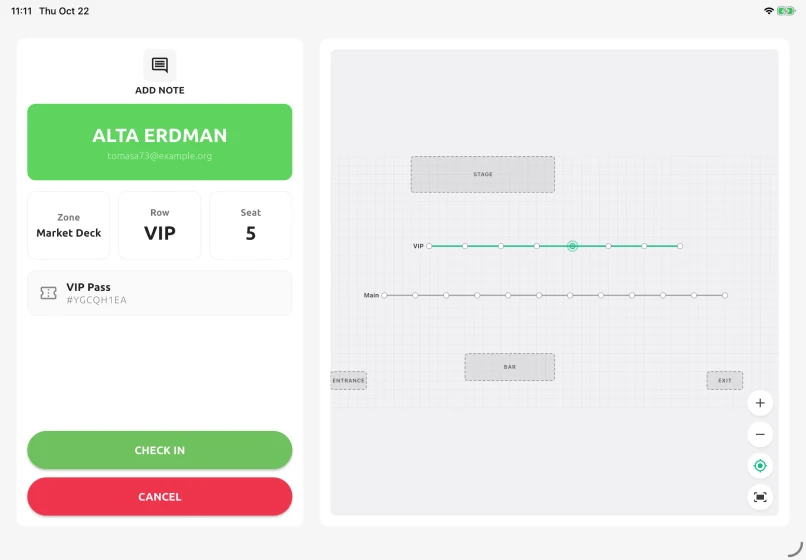
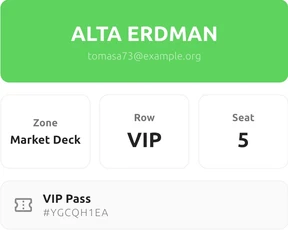
Odaiba Market demo · VIP Pass · before admission
A point of access for each gate or zone
Create a point of access wherever the event needs a controlled entrance, such as the main gate, a lounge, backstage or a press area. Link each ticket type to the places where it is valid.
The same rules for attendees and staff
Staff badges are checked against the points of access assigned to that person. Their entry history stays with their staff record, using the same gate setup as attendee tickets.
Two entrance methods
Use QR-code scanning when entrance staff are working with Access Stack. The app checks whether the ticket is genuine, confirmed, valid at that gate and available for entry or re-entry, then shows the result clearly. As an alternative, the attendee can open the ticket on their own phone and it can be checked in with a swipe on that screen. The organiser decides whether entrance staff or attendees themselves may perform the swipe. A ticket that fails the access rules is refused.
The swipe opens a confirmation step before the entry is validated. After check-in, an Entry Confirmed screen can show information chosen by the organiser, including a welcome, the day's schedule or the attendee's table, row or seat.
Re-entry by gate
Set re-entry separately for each point of access. A main entrance may allow an attendee to leave and return, while another zone remains entry-only. The history records whether a confirmed scan was an entry or re-entry.
When the network drops
Once the event is loaded on the tablet, gate staff can continue scanning. Confirmed admissions stay on the device and are sent when the connection returns. While a device is offline, it cannot receive new activity from other gates.
What gate staff can see
- The attendee name and ticket type
- The table, row or seat when assigned
- A badge print action when badges are used
- A search by name, company, email address, table number or ticket code
- A clear reason when entry is refused
Explore the platform
Questions organisers ask
- Can we run several gates at the same time?
- Yes. Each tablet is assigned to a point of access. While connected, check-ins update Event Base and the other connected gates immediately.
- Can someone use the same ticket twice?
- Only where re-entry is allowed. Otherwise a later check-in attempt is refused, and the admission and refusal remain on the record.
- What happens if the Wi-Fi drops?
- Scanning continues after the event has been loaded. Admissions wait on the tablet and synchronise when the connection returns. During that time, the tablet does not receive activity from other gates.
- Do we need special hardware?
- A tablet with a camera is enough for standard scanning. A badge printer or handheld scanner is optional when the event needs it.
- Can staff find a ticket without scanning the QR code?
- Yes. The operator can search in Access Stack by name, company, email address, table number or ticket code. Swipe check-in remains on the attendee's own ticket screen.
Walk us through your gates.
Tell us who enters where, how re-entry works and what staff need to see. We can map the entrance flow with you.